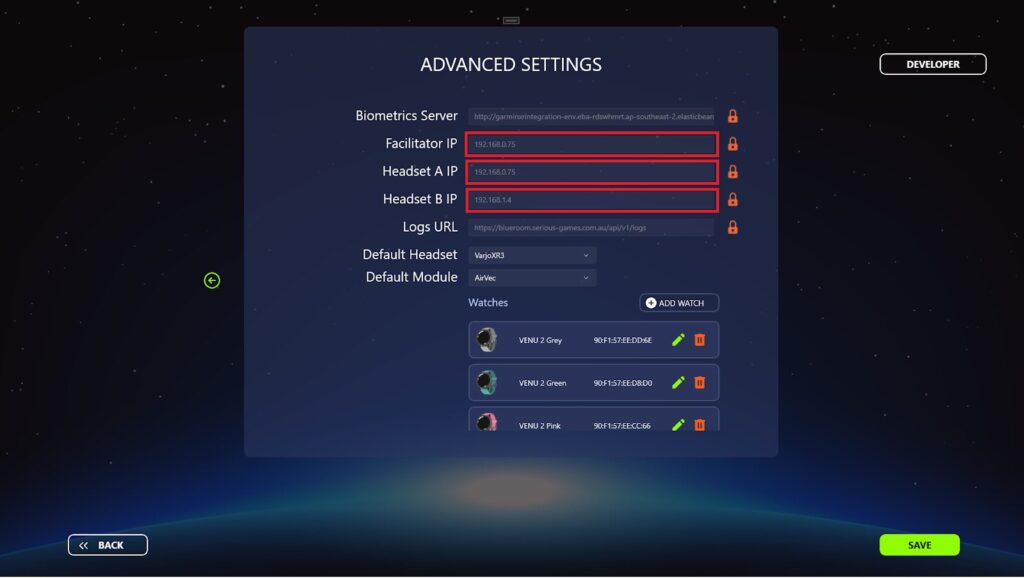
The IP addresses of both PCs need to match those in the Mission Control settings.
Finding your IP address
You can find out the IP address of a PC by opening the Command Prompt.
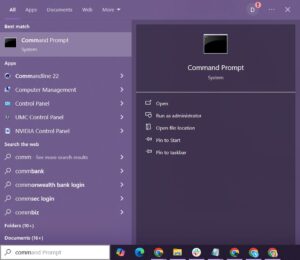
- Type Command Prompt in the windows search bar and open the program.
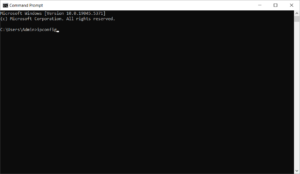
- Type ipconfig into the command prompt window and press Enter.
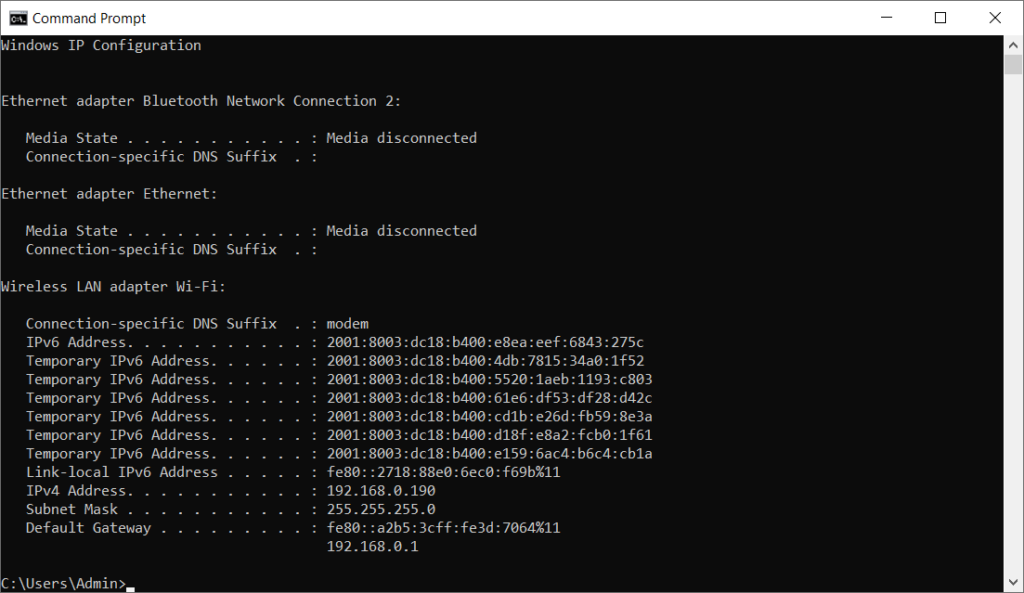
- Look in the results for the IPv4 Address, in this case it’s 192.138.0.190. That is the IP address of this machine.
Checking and updating IP addresses in Mission Control
- Open the Mission Control program.
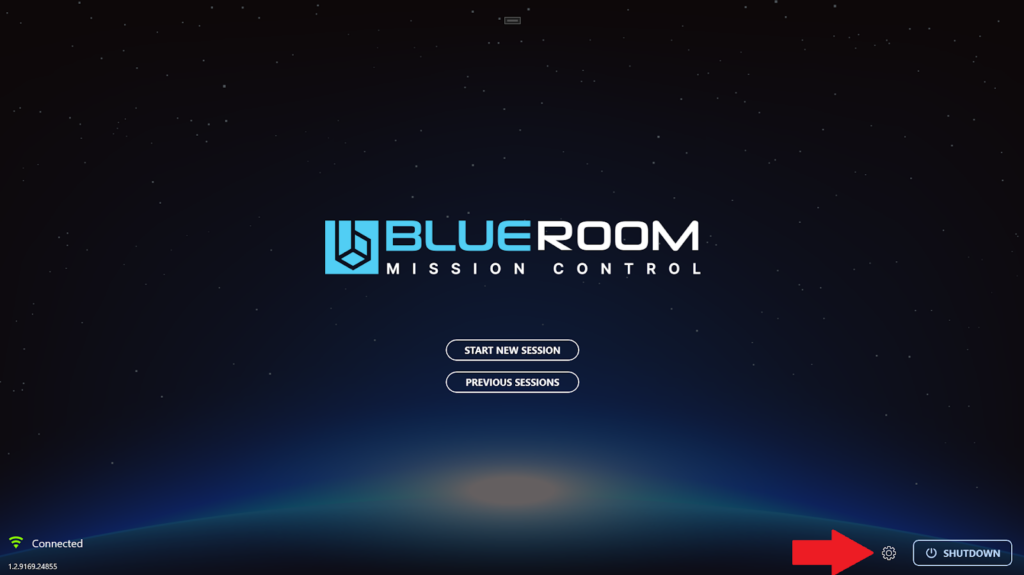
- Select the gear icon in the bottom right hand corner to open settings.
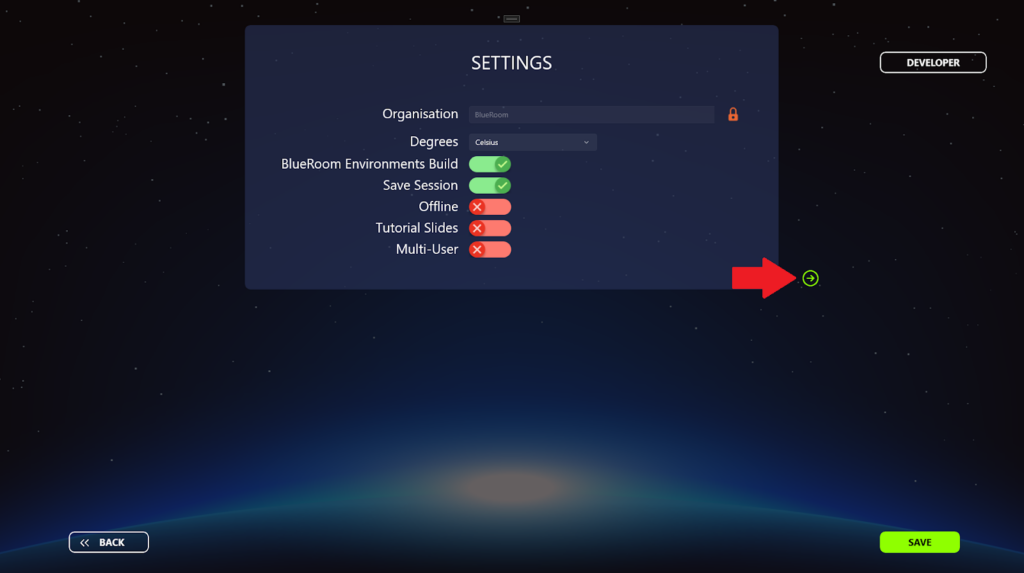
- Select the green arrow to go to the Advanced Settings.
- Look at the IP addresses listed against the various computers.
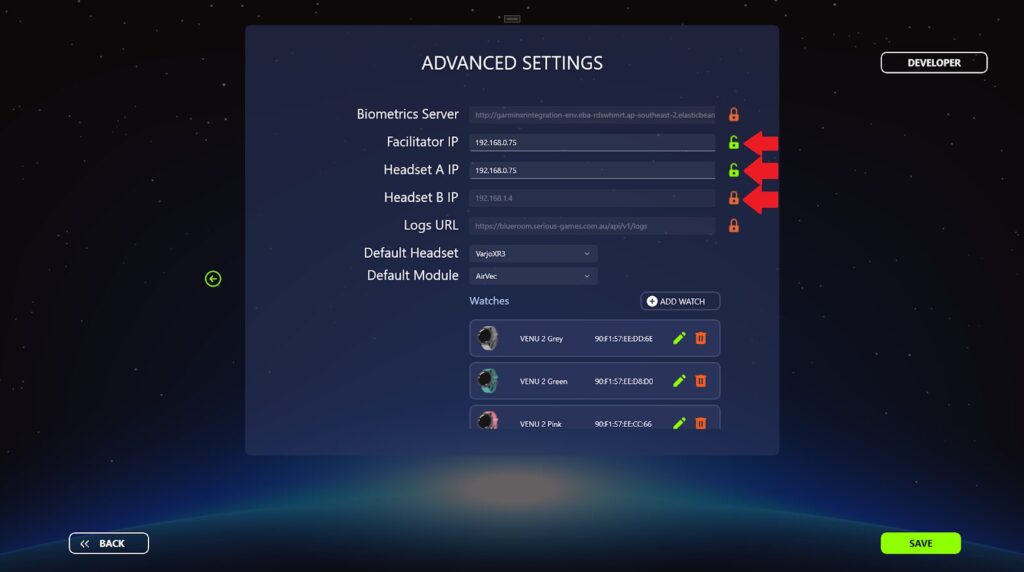
- If you want to change an IP address, click the lock toggle to unlock the IP address field and type in the new IP address.
- Click SAVE.
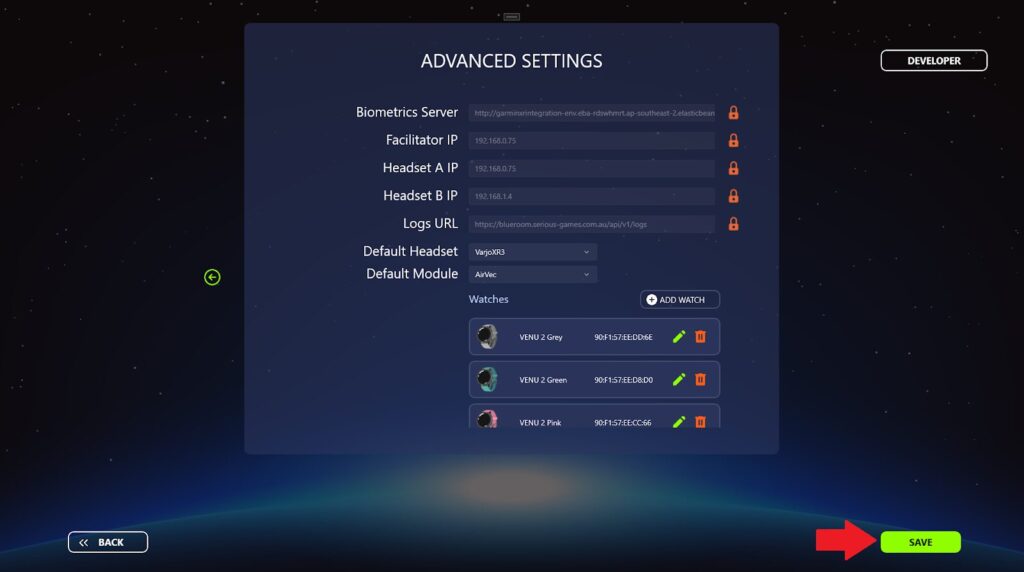
Changing the IP address of a PC
If you need to change the IP address of a particular computer then you can follow the following steps.
- Type Network Status into the Windows search box and open the program.
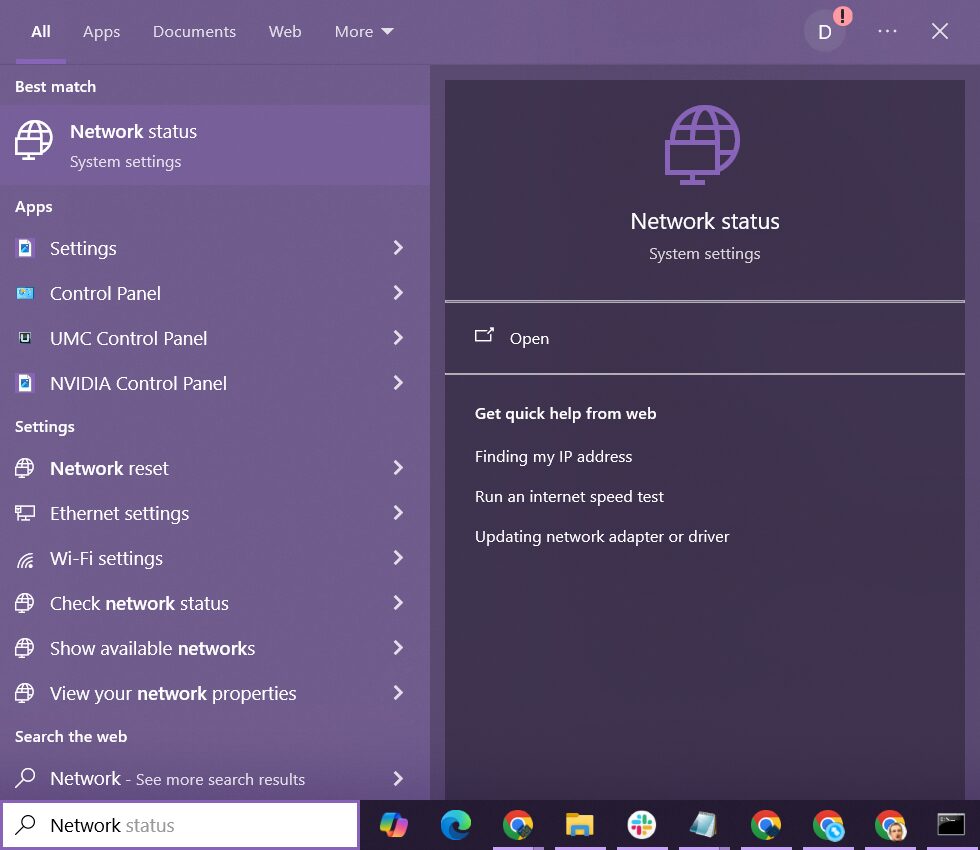
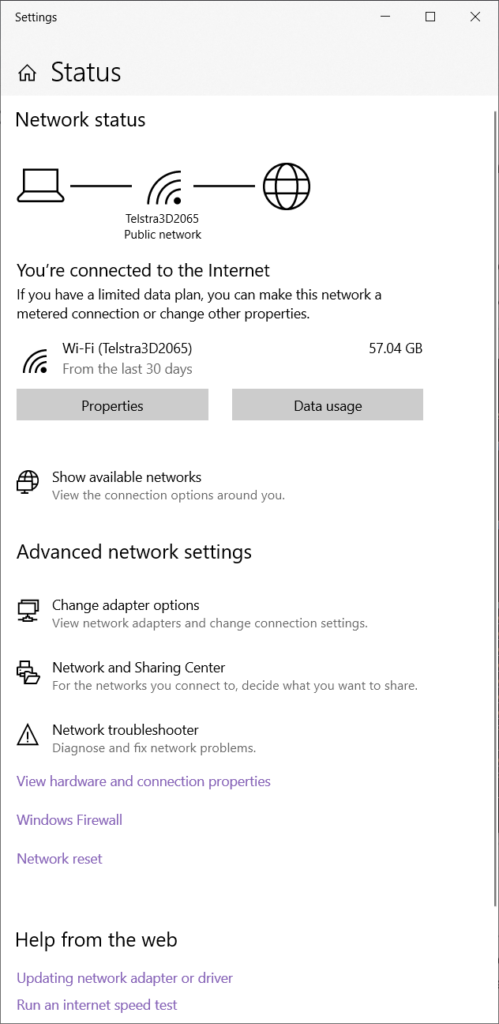
- Click the Properties button.
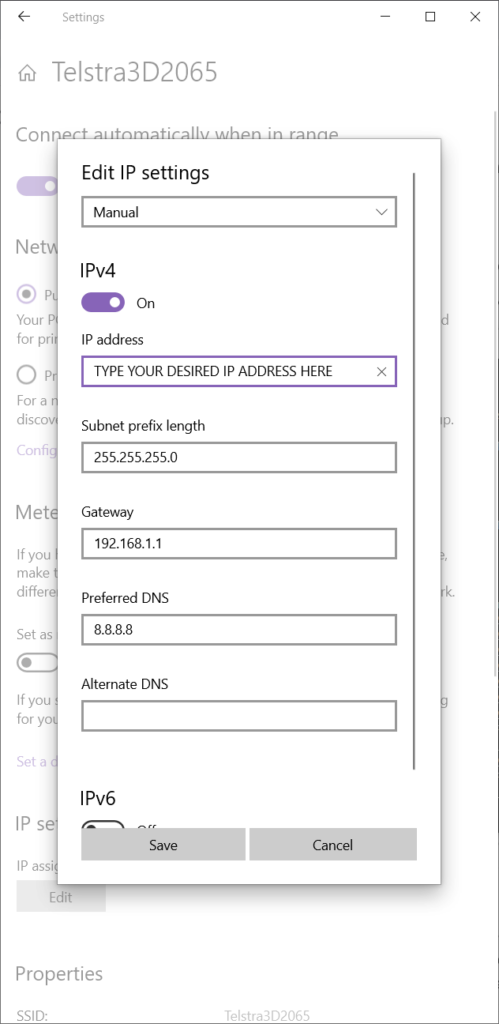
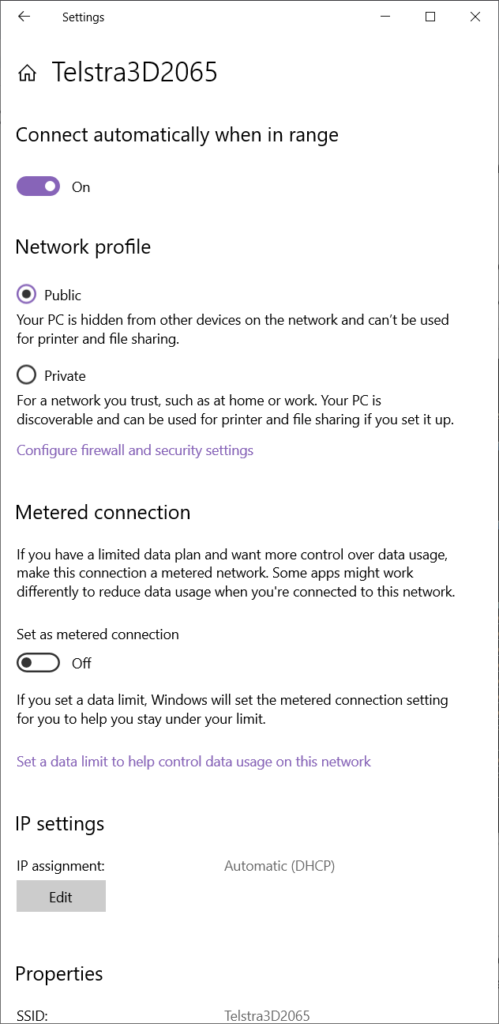
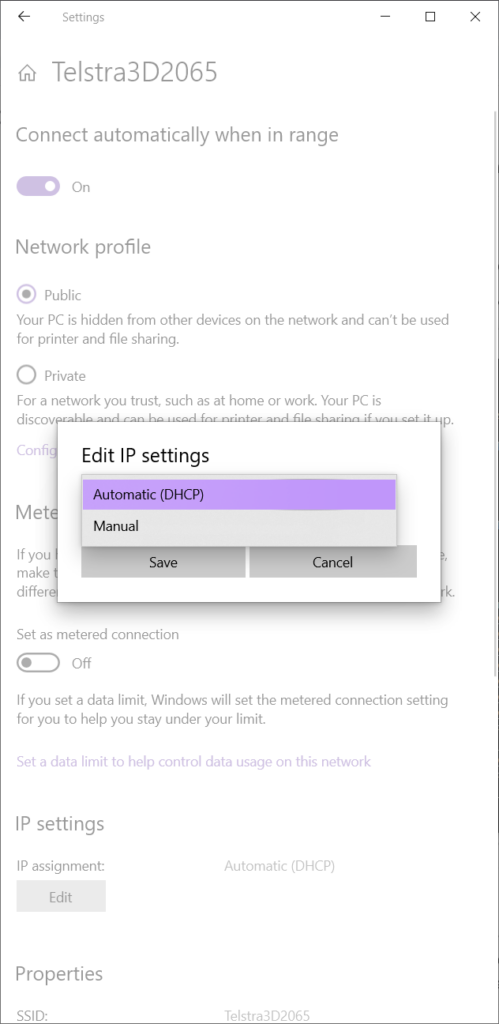
- Scroll down until you can see IP settings>IP assignment and click the Edit button.
- Select Manual from the drop down menu.
- Toggle IPv4 on.
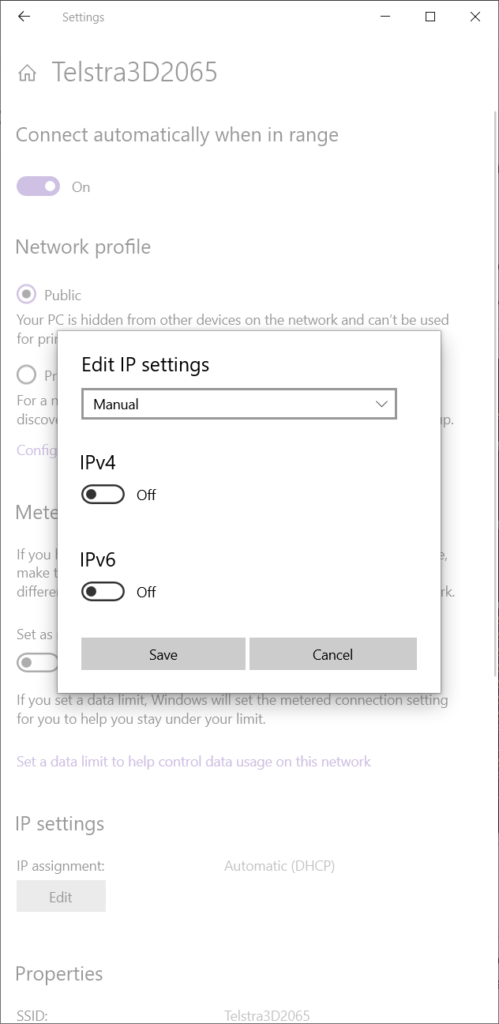
- Type in the following values and click Save.