- Power the Headset PC and Facilitator PC on.
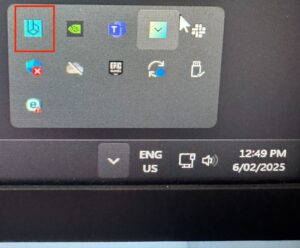
- Ensure the Node Service Program is running on the Headset PC. There is an icon on the desktop to launch the program, and an icon in the System Tray (bottom right of window) when the program is running.
- If not already on, power the Varjo headset on and wait 60 seconds or until the ‘ahhh’ sound is heard.
- Open Mission Control on the Facilitator PC.
- Load the Aeromedical module.
- Switch to Varjo Lab Tools (red Varjo icon tab window) on the Headset PC.
- Click the Edit Mode tab at the top left.

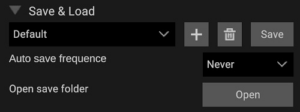
- At the top in Save & Load check the appropriate sized room setup is selected.
- Select the Mask Mesh 1 dropdown.
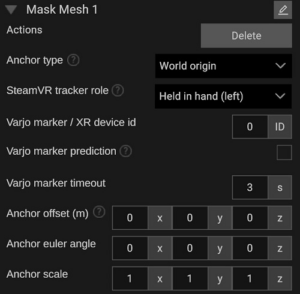
- Using the Anchor euler angle settings, align the mask rotation so it matches the orientation of the room. This will require either two people (one with the headset and one on the Headset PC) or one person who puts the headset on, looks at what needs to be changed, takes it off, adjusts the settings, then checks again until it’s right. Although this can seem tedious it doesn’t take that long.
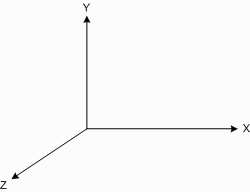
- Using the Anchor offset settings, align the mask position so it matches the orientation of the room. Adjust the numbers by positive and negative decimal places when necessary to fine tune the position of the mask; for example -0.5.
- Once the mask is in the right position, click Save.Don’t forget to save!
- Click the Use Mode tab at the top left.
- Check that everything looks okay in the headset and that there are no gaps in the mask.
- Select the Edit Mode tab at the top left.
- Select the Chroma Key settings dropdown.
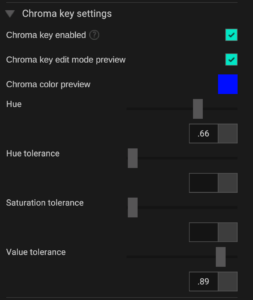
- These are the recommended settings. If you need to adjust slightly, start by increasing the Hue tolerance value (second) slightly. You should not need to change the Hue value at all.
- Once you have achieved the optimal settings, once again click Save at the top of the screen.
- Click the Use Mode tab at the top left.