Please note that settings may depend on your individual setup.
Start Up
Turn the lights on.
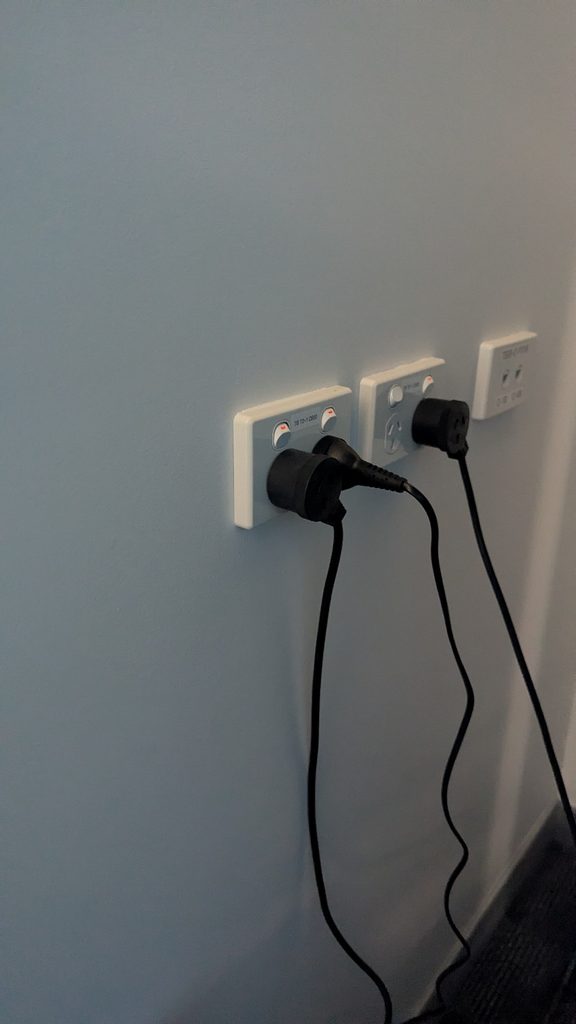
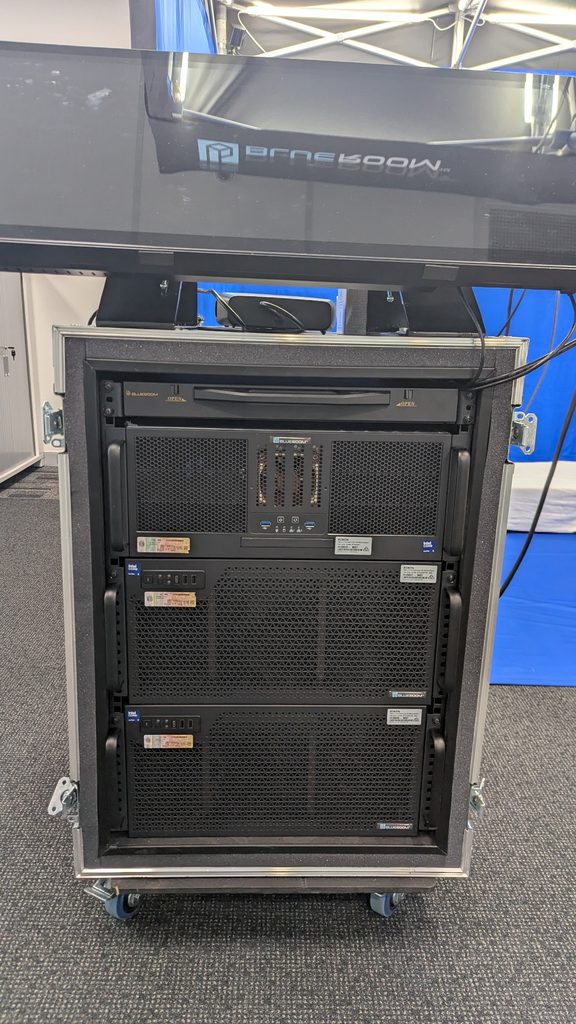
Turn on the system with these 2 buttons, (turning on the control computer and headset computer). Note: the bottom computer is for the dual headset capability and won’t be needed till final installation.
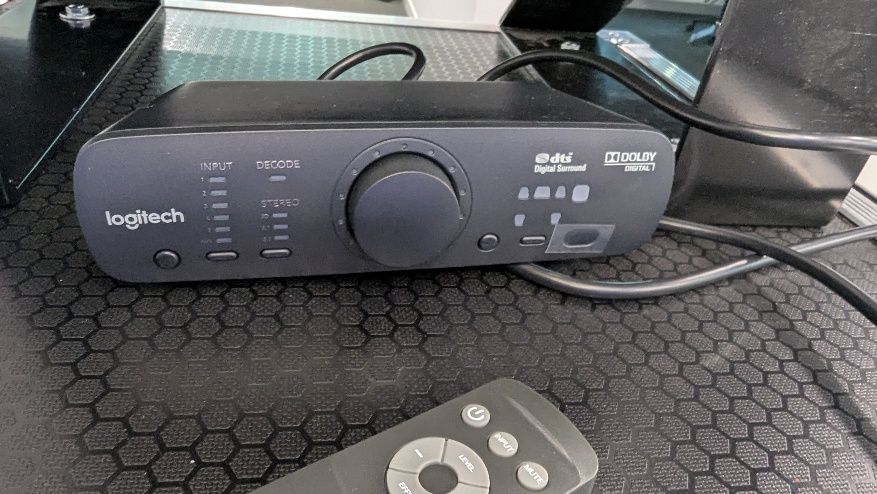
Turn on the sound system with this control panel. Note: don’t adjust the volume on this control panel as the volume is configured to the default set in the software. Changes to the volume should be adjusted within the application.
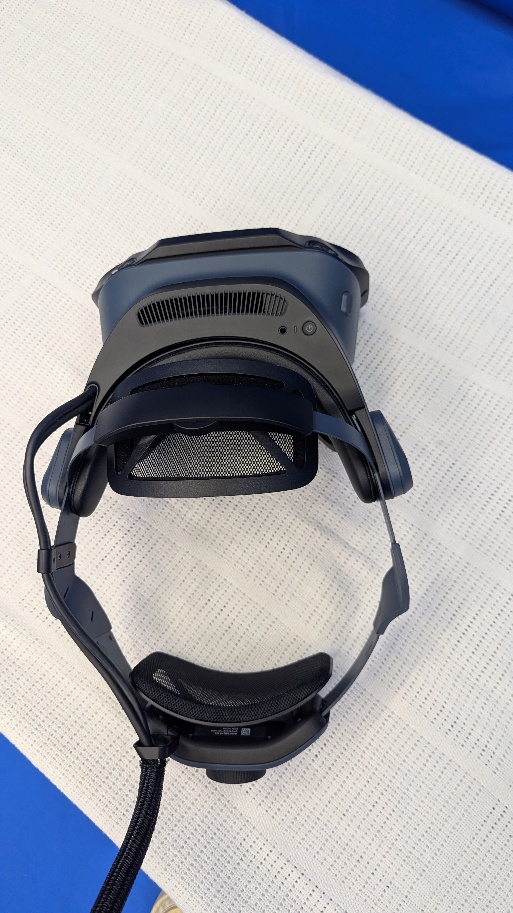
Turn on the VR headset (hold down till green light flash to turn off when finished). Note: Will take about 45 seconds to fully boot up.
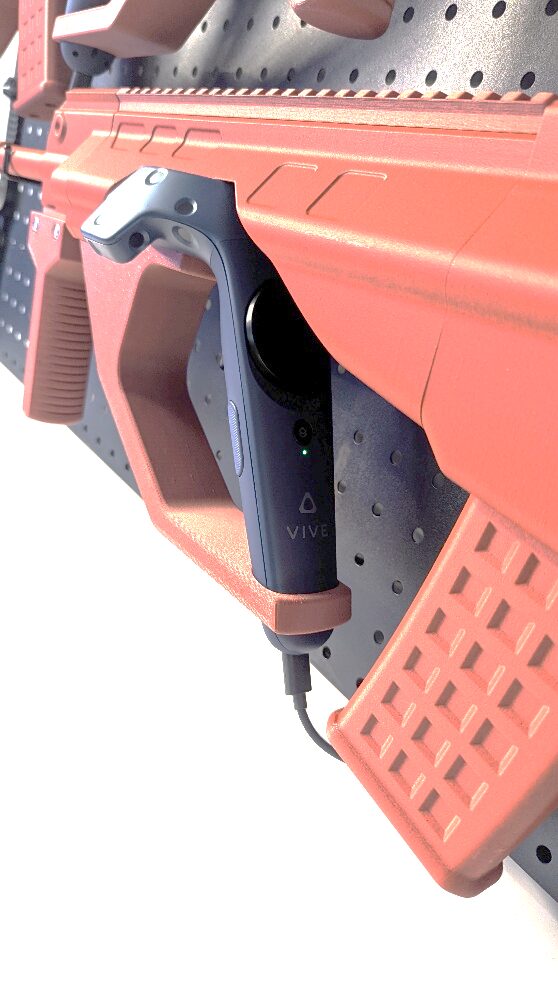
Unplug cable going into the bottom of the controller and press this button to turn on controller. (hold down to turn off when finished)
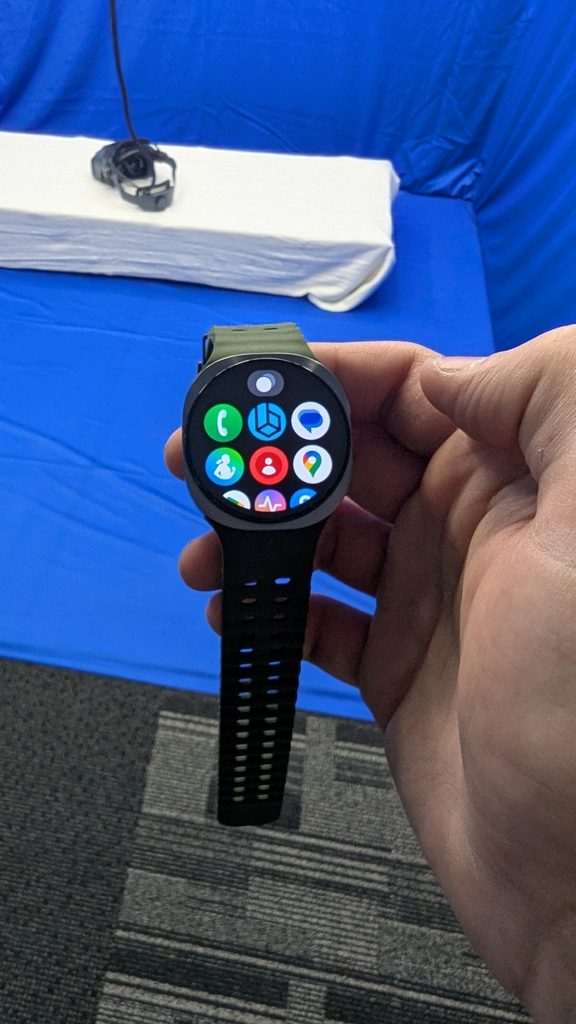
use the watches swipe up on the screen and open the BlueRoom application.
Operating
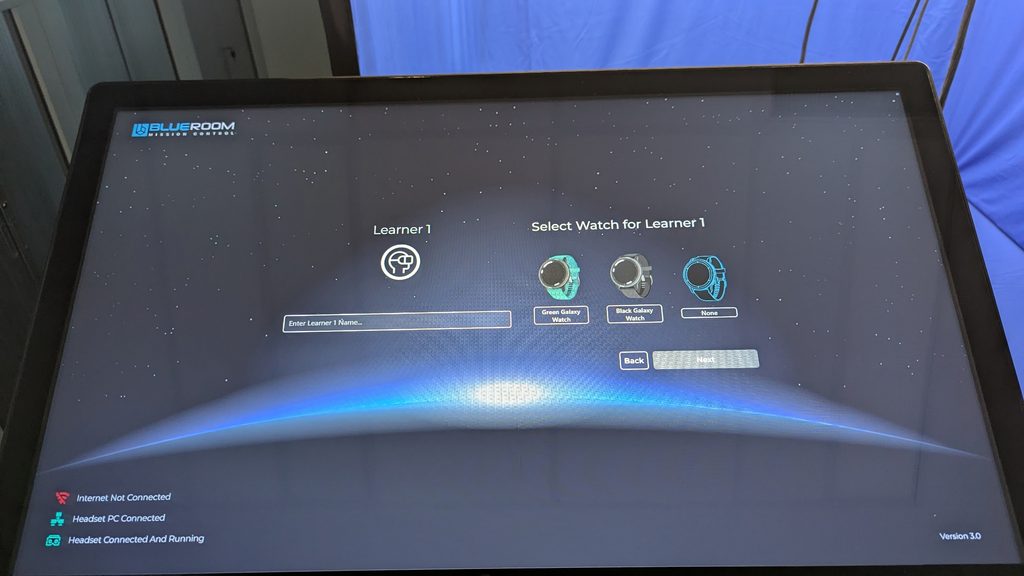
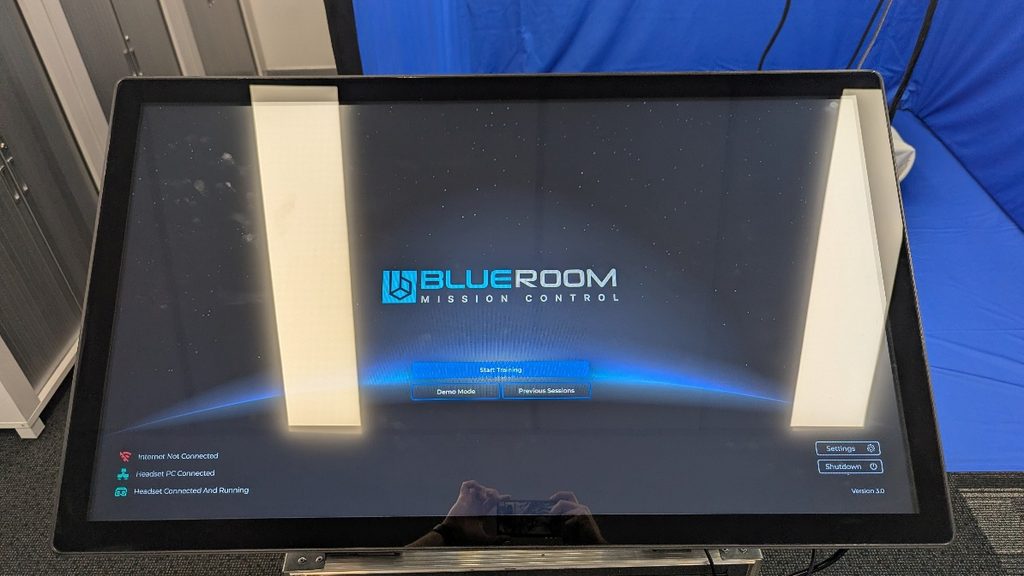
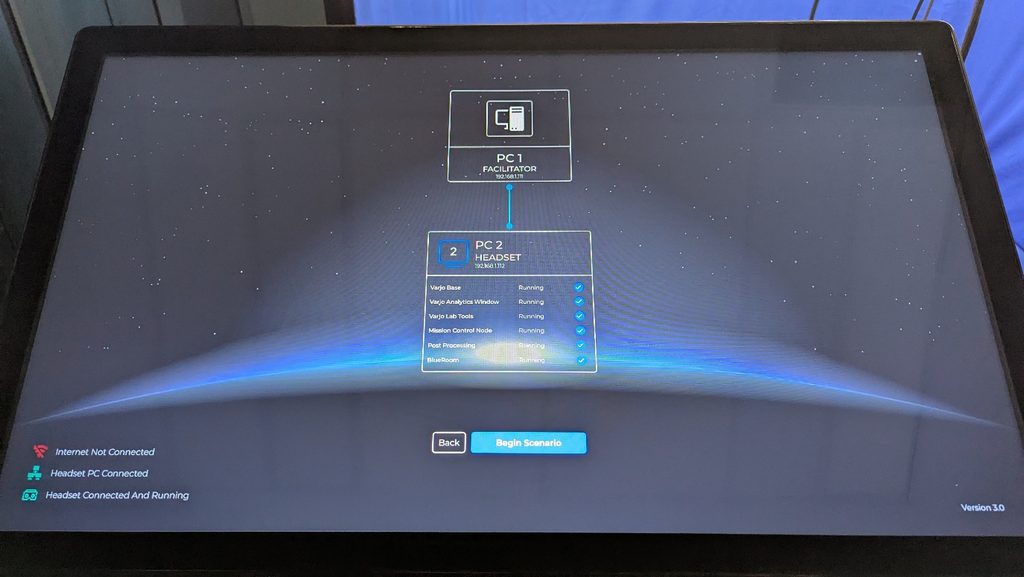
The computers will boot to this main screen. Check “Headset PC” and “Headset” are connected in the bottom left corner (don’t need internet). Bottom right corner press shutdown when finished using to turn off both the computers.
- Demo mode – a quick setup to show off the simulations
- Start training – requires full user setup (names, patient symptoms etc.) and will record sessions to view later.
- Previous sessions – all the saved recordings from previous sessions.
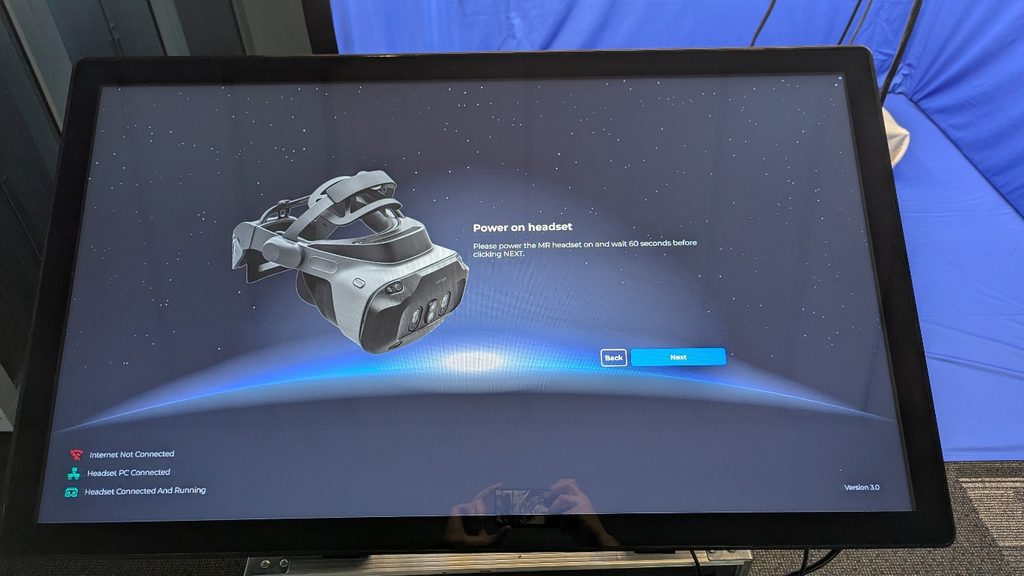
Selecting either Demo Mode or Start training will proceed to this screen. If you have already turned the headset on in the start up press next (only needs to be done once per use)
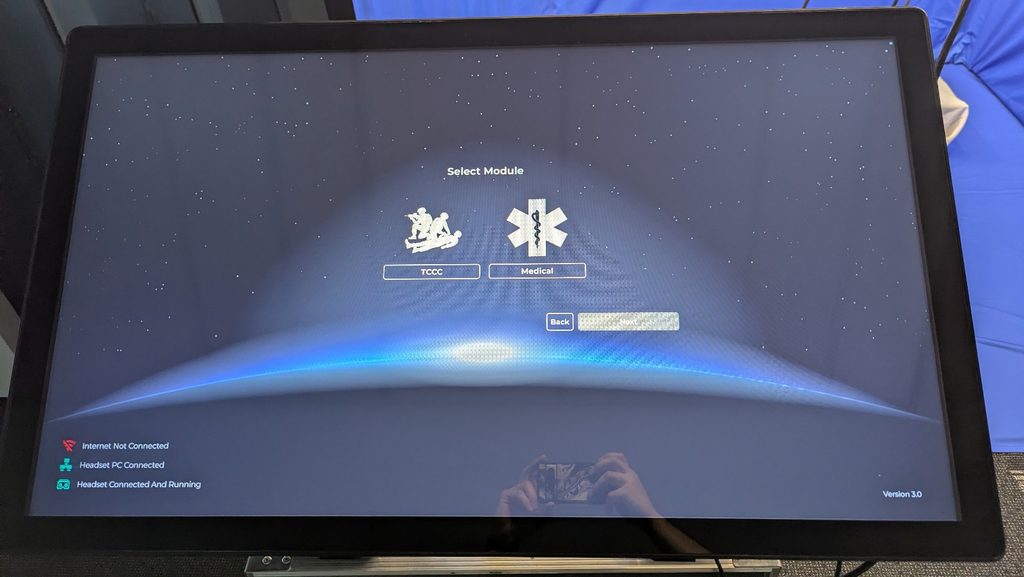
Select TCCC or Medical (TCCC requires the controller). Note: That there are different environments across the different modes.
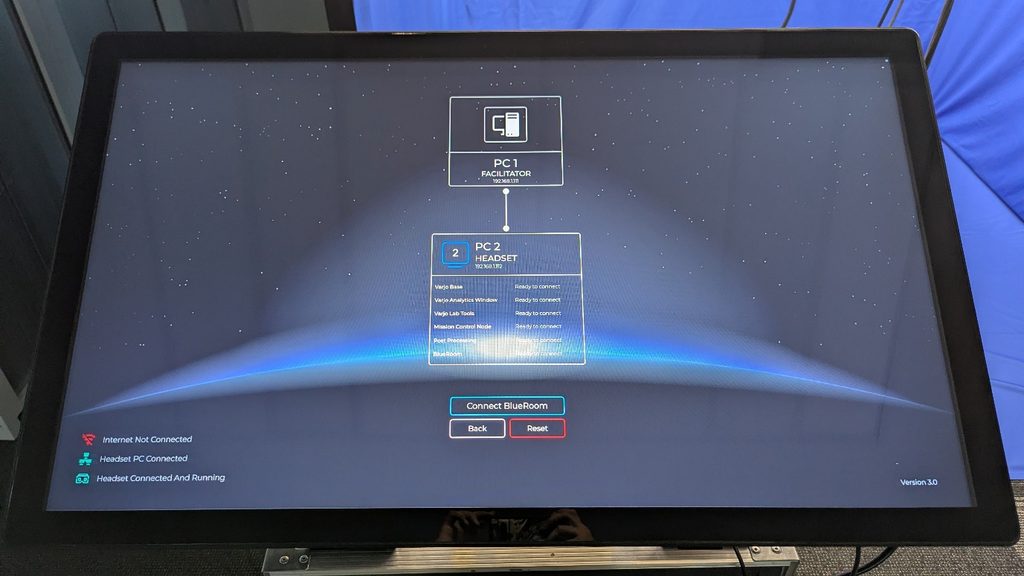
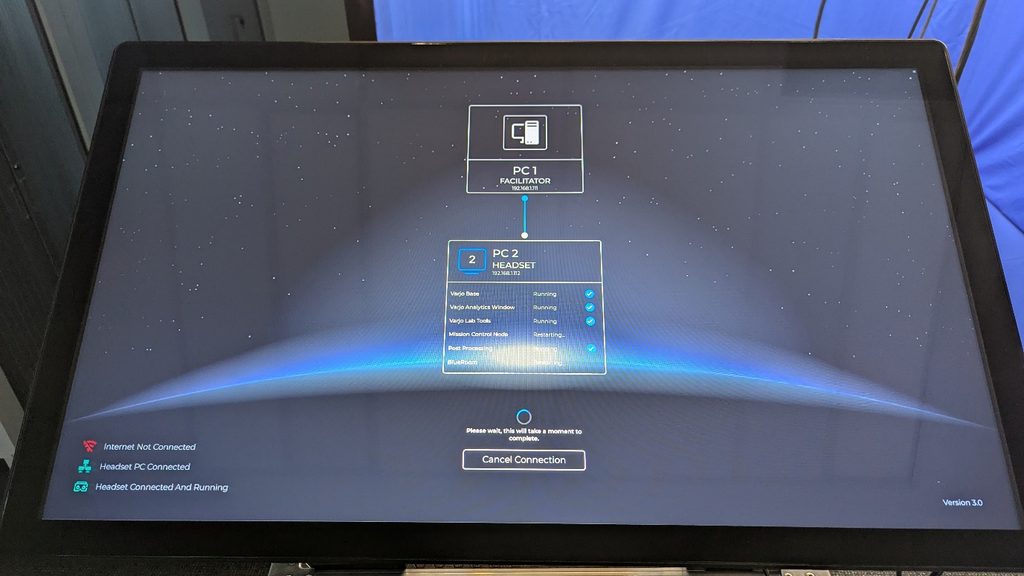
Connect BlueRoom and wait for all to be running where prompted with “Begin Scenario”.
Main Controller dashboard
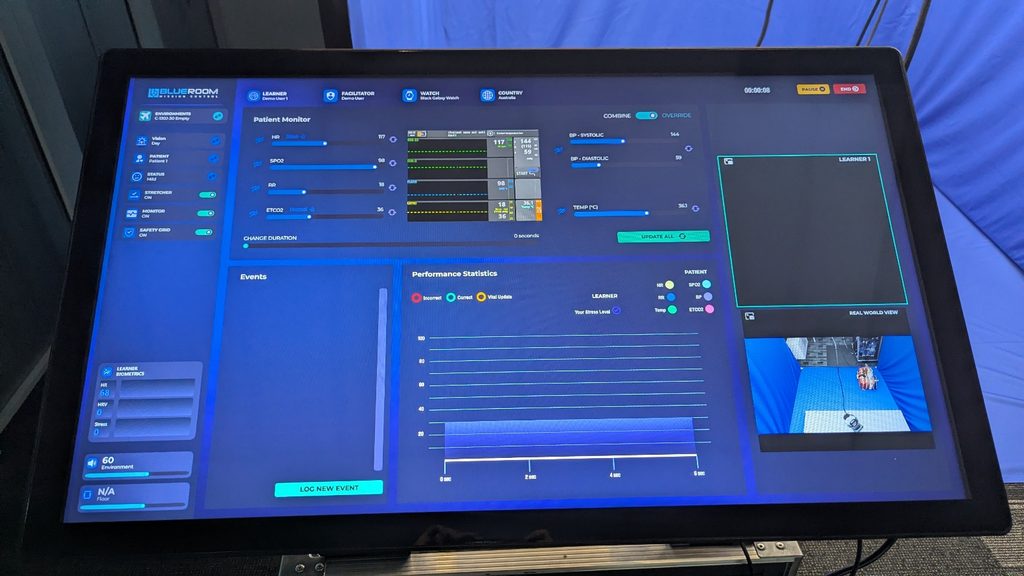
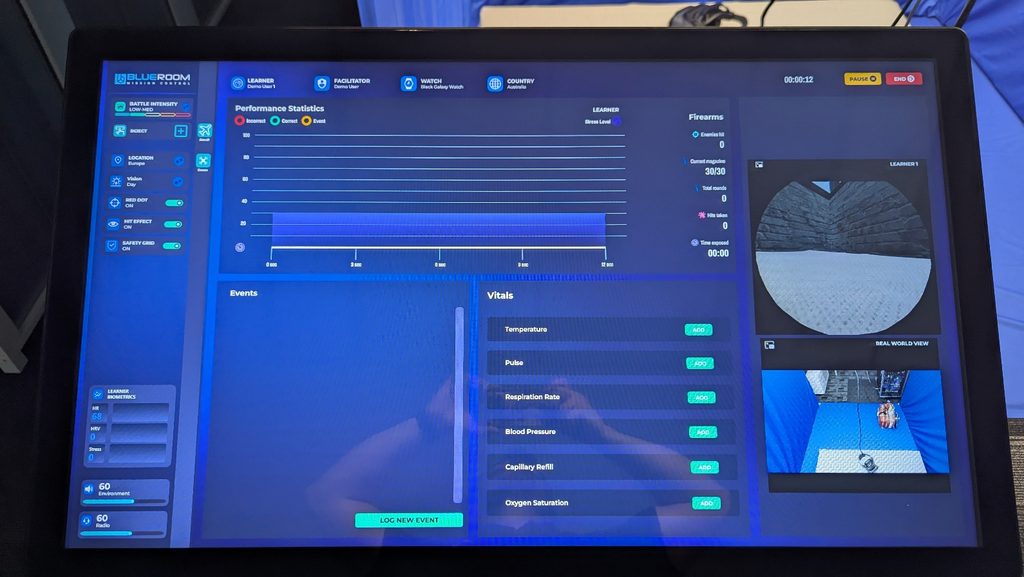
- The left collum includes the environment settings including location, time of day, scene intensity (options change depending on selected environment). Down the bottom is the learner’s biometrics obtained from the watch, and the scene volume.
- Middle for medical layout includes all the patient monitor data, performance statistics showing the progression of the learner biometrics and allows the facilitator to create new events for the learner to refer to when reviewing.
- Middle for TCCC shows timeline for learner, in/out of cover, kills or times hit. facilitator can add new events for the learner and adjust the patient vitals.
- Right collum includes live video of what the learner is viewing, and the video camera birds eye view of the space. The top allows the facilitator to pause of end the training.
Medical
TCCC
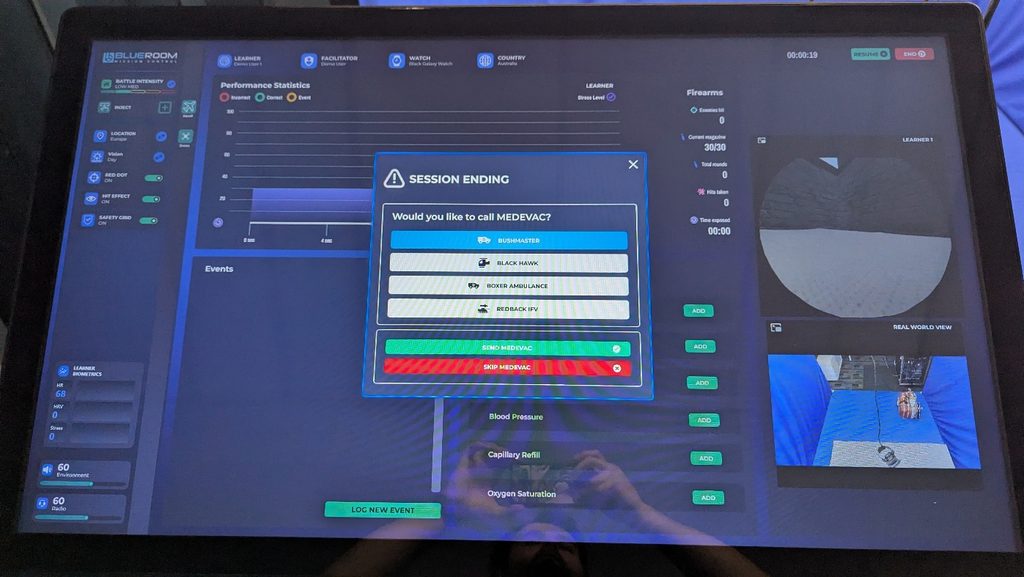
In TCCC ending the session will allow the facilitator to call in MEDEVAC to end the scene or can skip.
Start Training Mode Additional Options
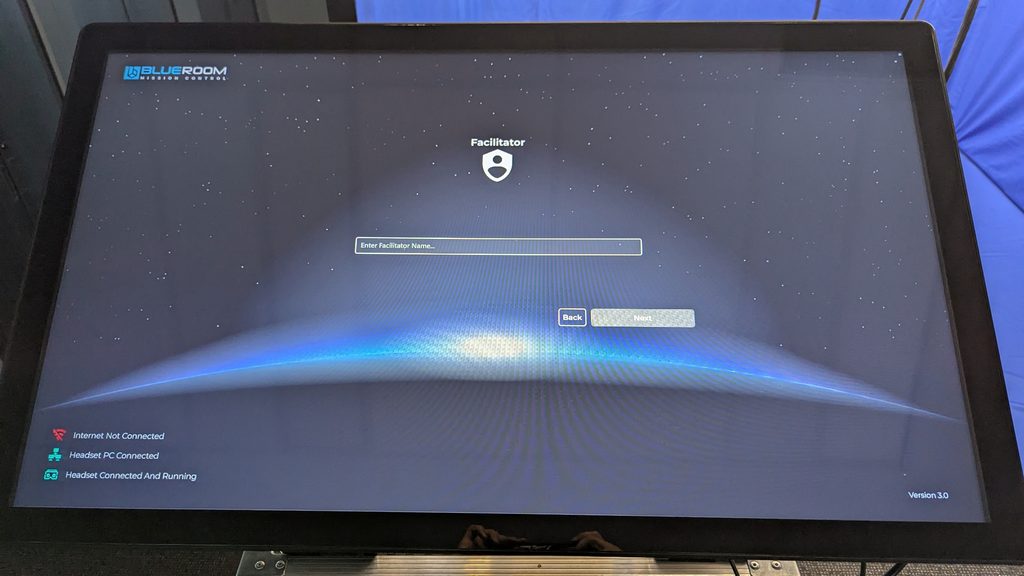
Enter the facilitators name and hit next.
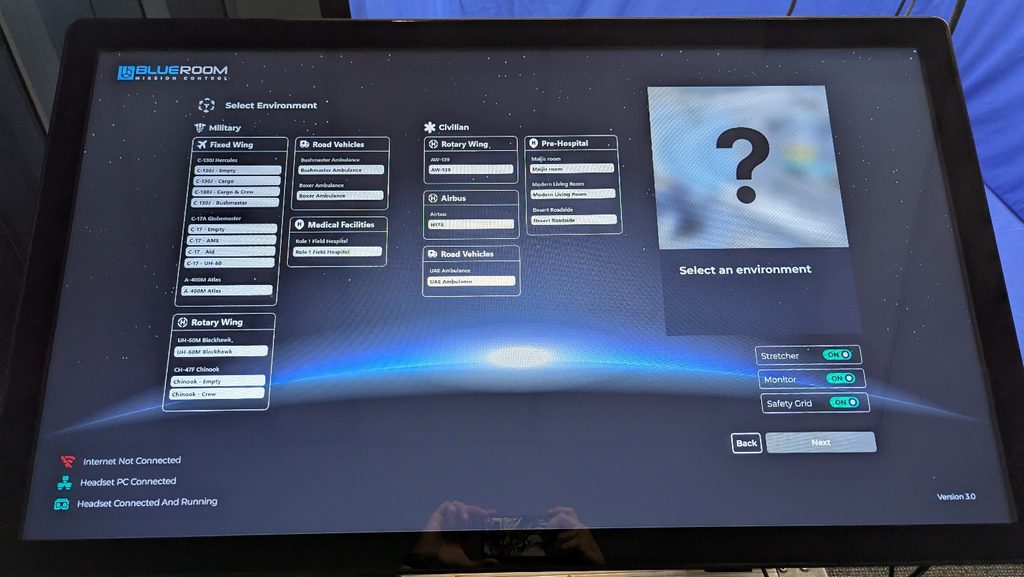
It will ask for an environment to use.
Medical
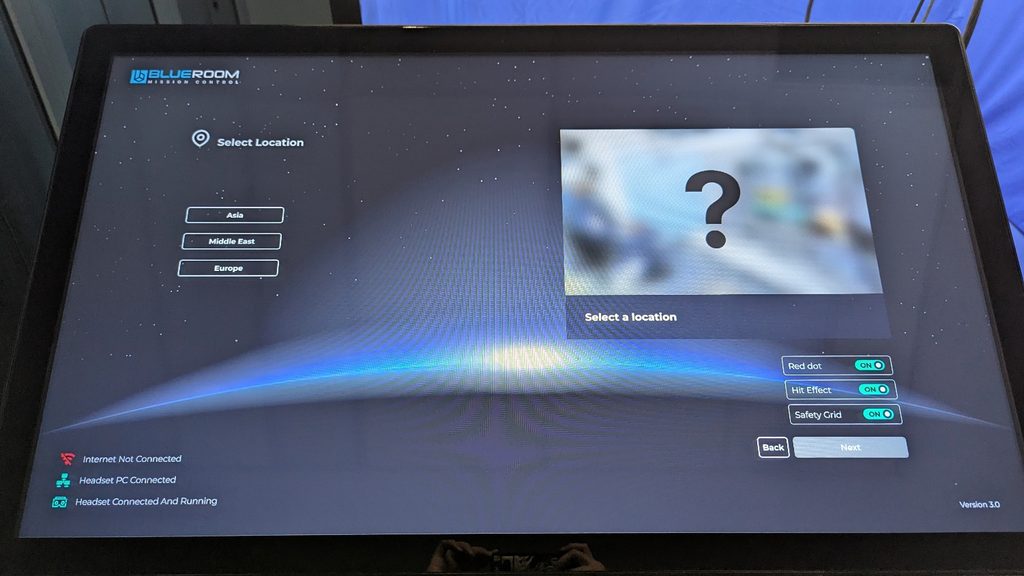
TCCC
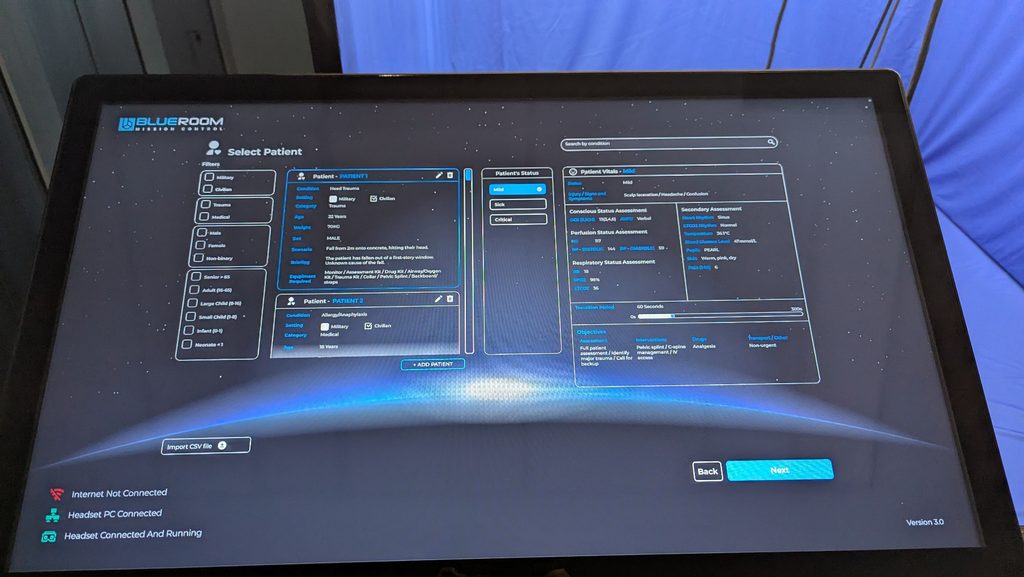
If using medical simulation mode, it will provide the facilitator with prefilled patient cases to choose from.
Lastly it will prompt for the learner’s name and selection of the watch used. Then will proceed to the connection page (seen above) ending with begin scenario.