Updated 01/10/2024
Introduction
BlueRoom biometric mission control application relies on data streamed from a watch to a tablet, then into the cloud server and into BlueRoom mission control

System requirements
Compatible Tablets
- Android Phone/Tablet with Android 13 installed
Suggested device
- Samsung Galaxy A8 WIFI 64GB
Compatible watches
Any of the following Garmin devices will work with the BlueRoom Biometrics application:
- D2 Mach 1
- Descent Mk2 Series
- Enduro & Enduro 2
- Epix (Gen 2 Series)
- Fenix 6 Series
- Fenix 7 Series
- Forerunner 255, 265, 945 LTE, 955 and 965
- Instinct 2 Series
- MARQ Collection (gen 1 & 2)
- Quatix 6 & 7 Series
- Tactix 7 Series
- Tactix 7 Delta Series
Software
Downloadable on Google Play or will come preinstalled on your device.
Quick Start
- Open the BlueRoom Biometrics app and click START.

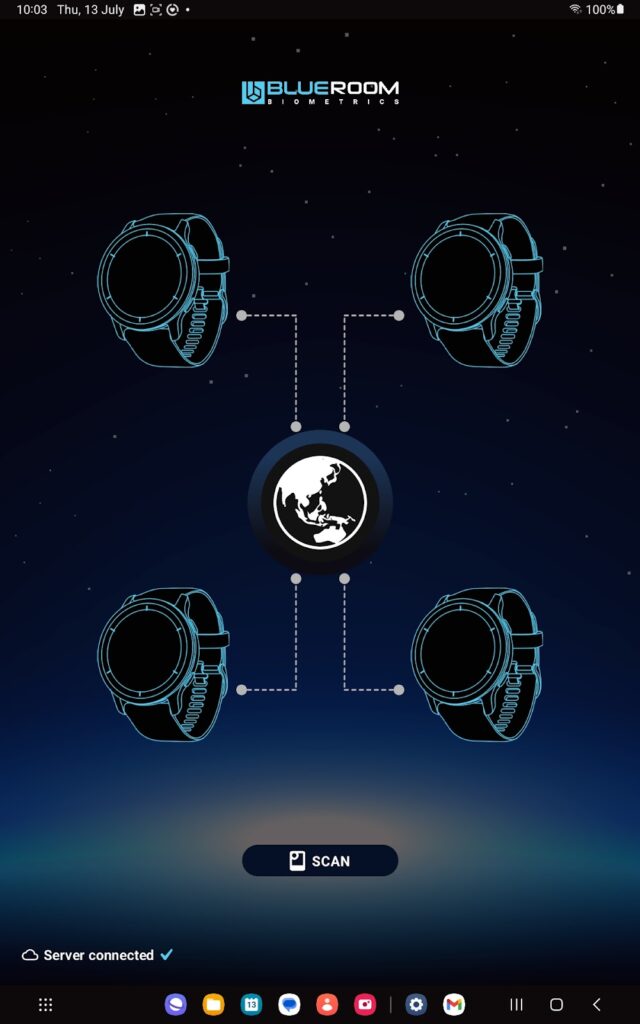
- Click SCAN.
3. If no watches are visible, restart the tablet and reboot the application. If this does not work you can also try force stopping and restarting the application as detailed in the troubleshooting section.
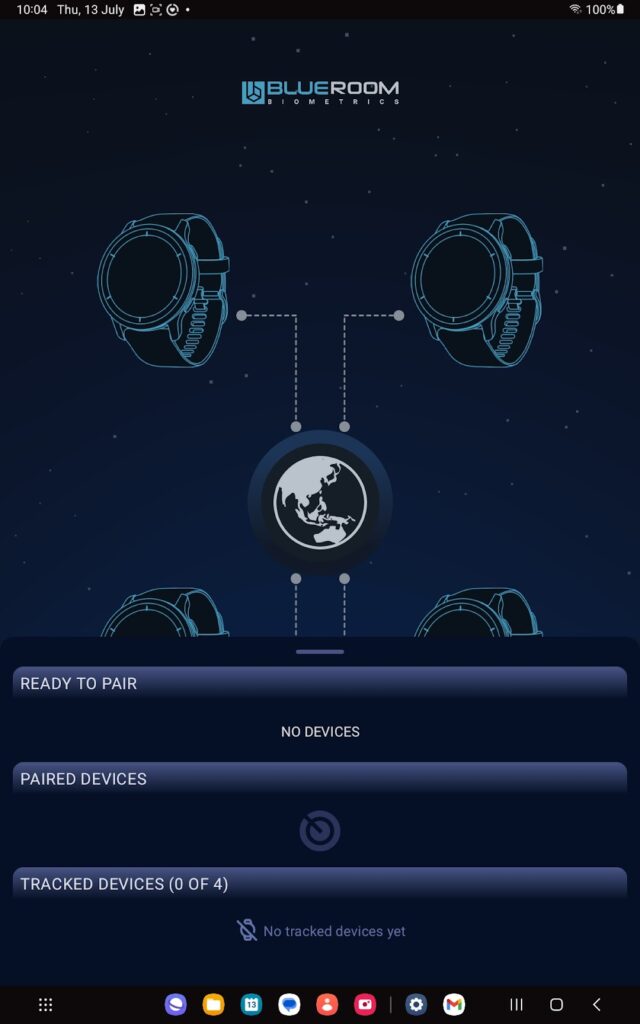
- If watches are visible in READY TO PAIR, click on them one by one to add them to PAIRED DEVICES. This may take 10-20 seconds, and you may need to wait up to 10 seconds before pairing the next watch.
- If watches are visible in PAIRED DEVICES, click on them one by one to add them to TRACKED DEVICES. This may take a few seconds.
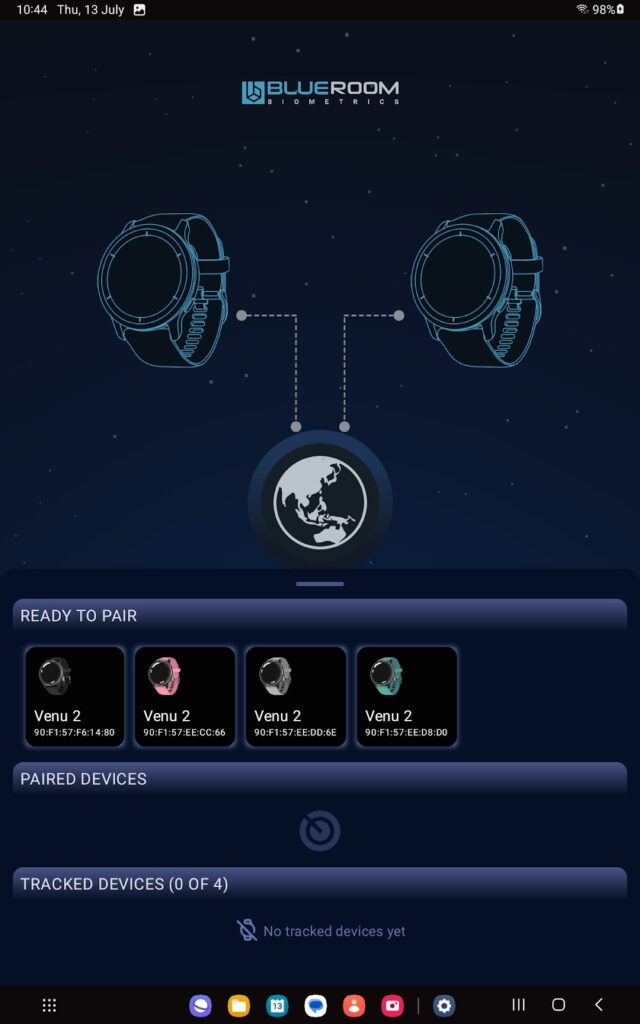
- The watches will move to the TRACKED DEVICES section.
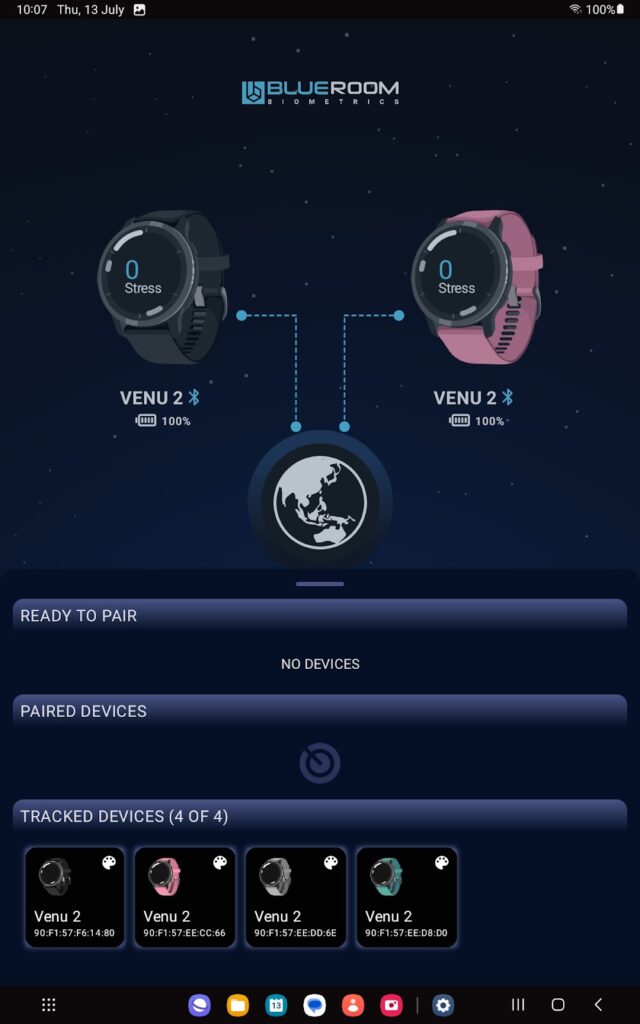
- Click anywhere on the main screen to return to the main view.
- All watches are now being tracked, and the data is being sent to the BlueRoom Mission Control application. To view data for each individual watch, click on that watch icon.
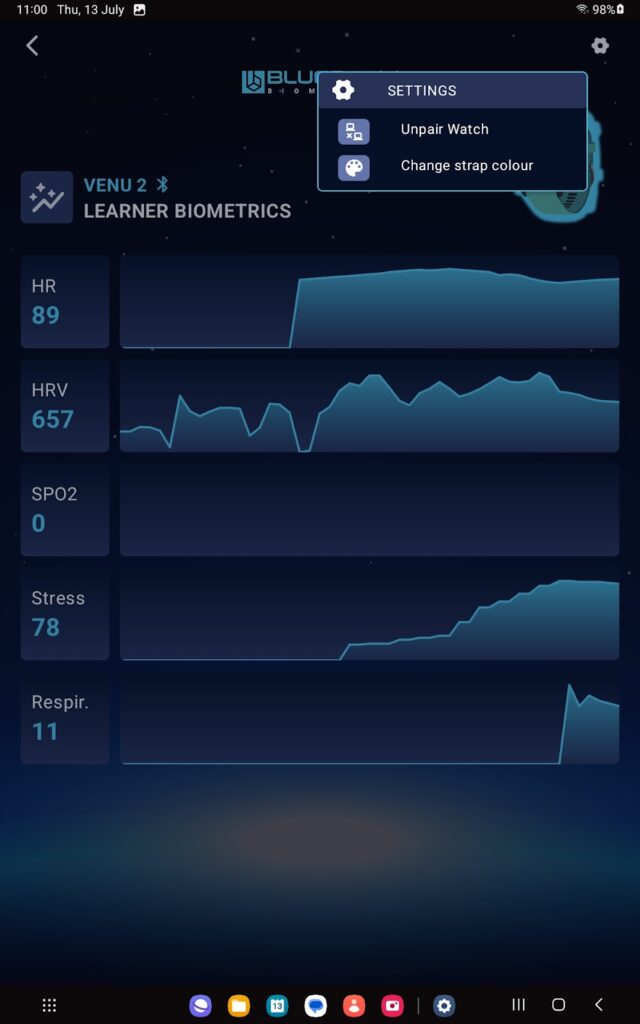
- To change settings for each watch click the settings icon in the top right corner.
- The Settings menu includes Unpair watch (for example if you wished to remove one particular watch to add another) and Change strap colours.
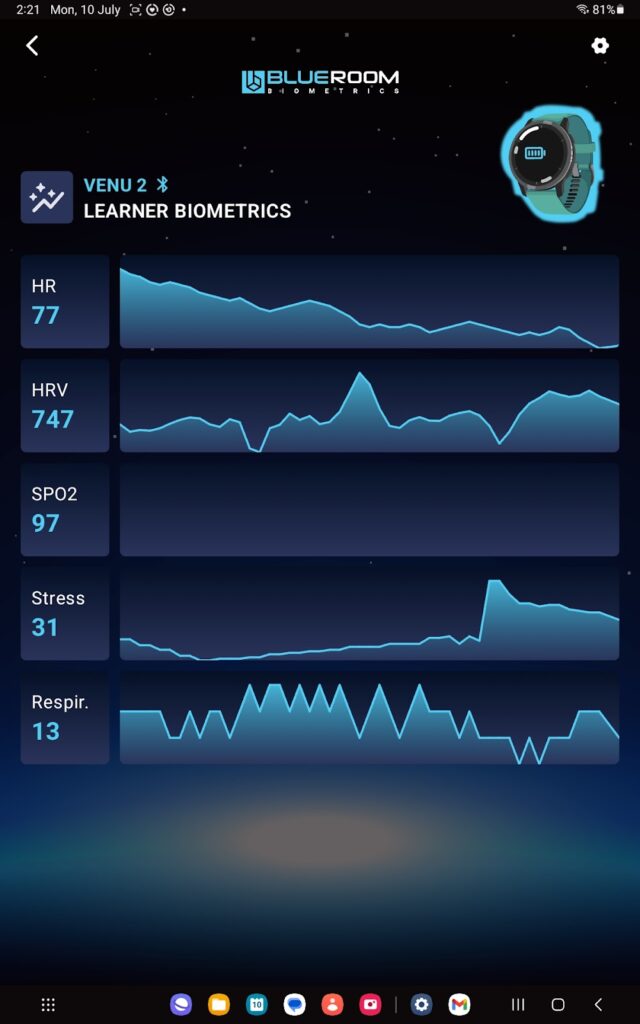
How to wear the watch
- The optical heart rate sensor must remain in contact with your skin at all times.
- The watch must be worn snug, but not too tight.
- If worn too loose the watch can slide around, creating a gap between the optical heart rate sensor and your skin.
- If the watch is worn too tight it can actually restrict blood flow.
- A good fit will mean that you can move the watch and the skin underneath moves with it.
- Wearing the watch on the outside of the wrist is recommended.
Chest strap
Utilising the Garmin chest strap will provide greater accuracy of the biometric data. The chest strap can be purchased separately and connects directly to the watch. The data that the watch is sending to the tablet and server is then data from the sensors on the chest strap rather than the wrist sensor.
Note: Pulse Oximetry (SPO2)
Pulse oximetry is measured every few minutes, however it requires the hand to be still and thus will not always provide a measurement. The user may trigger a pulse oximetry reading manually via the watch.
Troubleshooting
| System | Potential Issues | Fix |
|---|---|---|
| Smart watch & tablet | Watch is not connected to the BlueRoom Biometrics application (tablet). | 1. Check the watch is connected in the tablet Bluetooth settings. 2. If it is not, see the solution below for ‘Watch is not connected to the tablet.’ 3. If it is, force close the BlueRoom Biometrics application and restart. 4. If this doesn’t work, power off the tablet and power on again. |
| Smart watch & tablet | Watch is not connected to the tablet. | 1. On the watch, open Settings>Connectivity>Phone>Pair Phone and rescan in the bluetooth settings and/or app. 2. Force close the app, turn Bluetooth on/off and try again. 3. Reset the tablet and try again. |
| BlueRoom Biometrics Tablet application | Server Offline | ‘Server Offline’ means that the data is not flowing from the BlueRoom Biometrics application via the BlueRoom servers to Mission Control. You will still be able to view the biometrics on the tablet, but will need to contact BlueRoom Simulations support to notify them that the server is not connected. We have monitoring software in place to ensure this doesn’t happen. |
| BlueRoom Biometrics Tablet application | Biometrics have frozen | Try each of the below steps in sequence until successful. 1. Close and re-open the app 2. Turn Bluetooth on/off and Force stop the app before re-opening the app. 3. Reset the tablet 4. Reset the watch 5. Unpair and repair the watch 6. Forget the watch from the Bluetooth settings directly and reconnect everything from scratch. |
| BlueRoom Biometrics Tablet application | Application fails to launch, is buggy | 1. Uninstall application. 2. Reboot device. 3. Reinstall application from Myfiles>Downloads. 4. Pair watches. |